Your desktop, finally working for you.
MagnaDesk 2.0 turns the desktop itself into a workspace. Sticky notes, images, drawings, and a full set of live widgets — clocks that sweep, timers that count, weather radar that animates — sit directly on your desktop, beneath your icons and behind your windows. Windows doesn't change. Your desktop just wakes up.
Free for 30 days with everything unlocked, then a one-time $14.99 purchase — no subscription. Downloads are handled through the Microsoft Store.
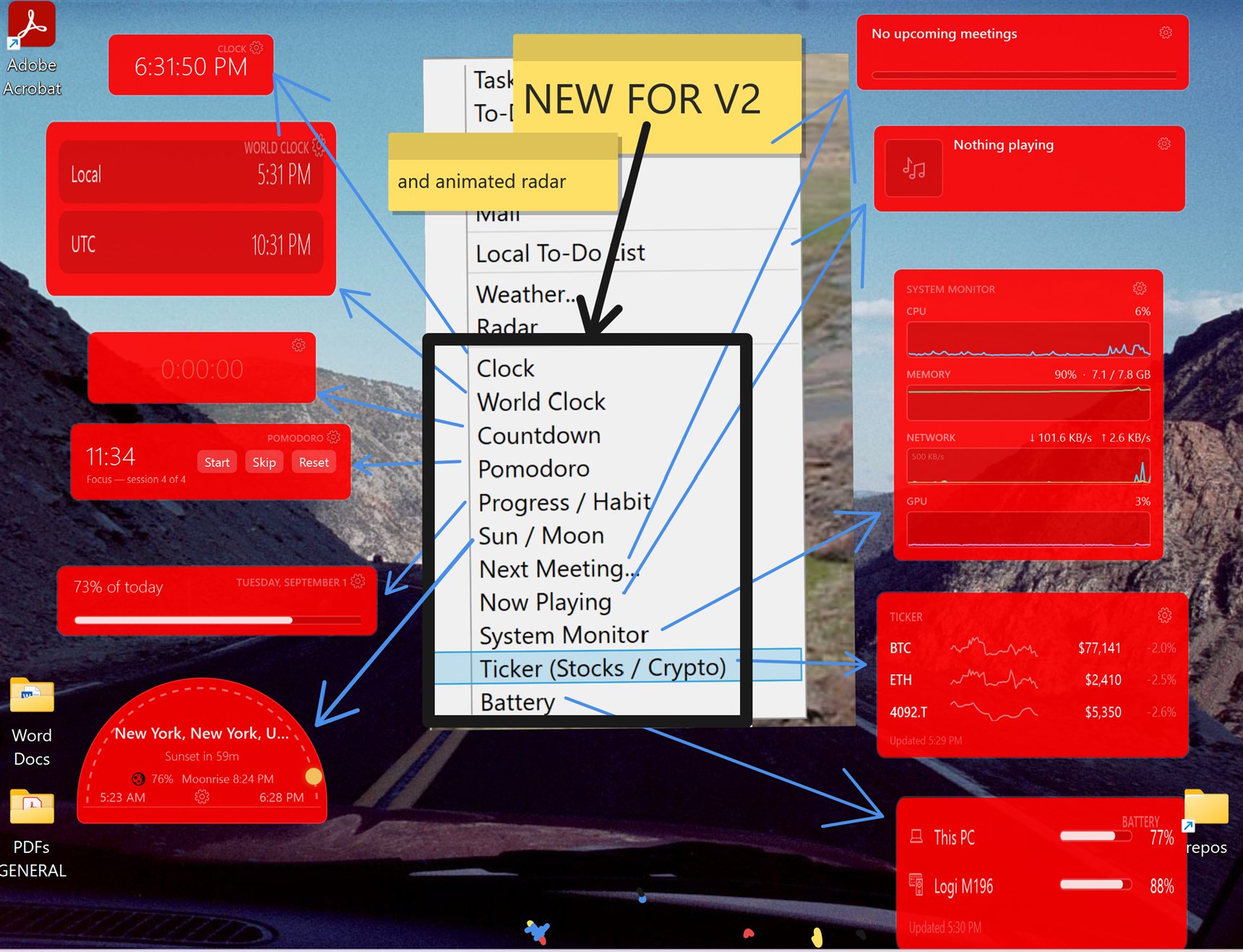
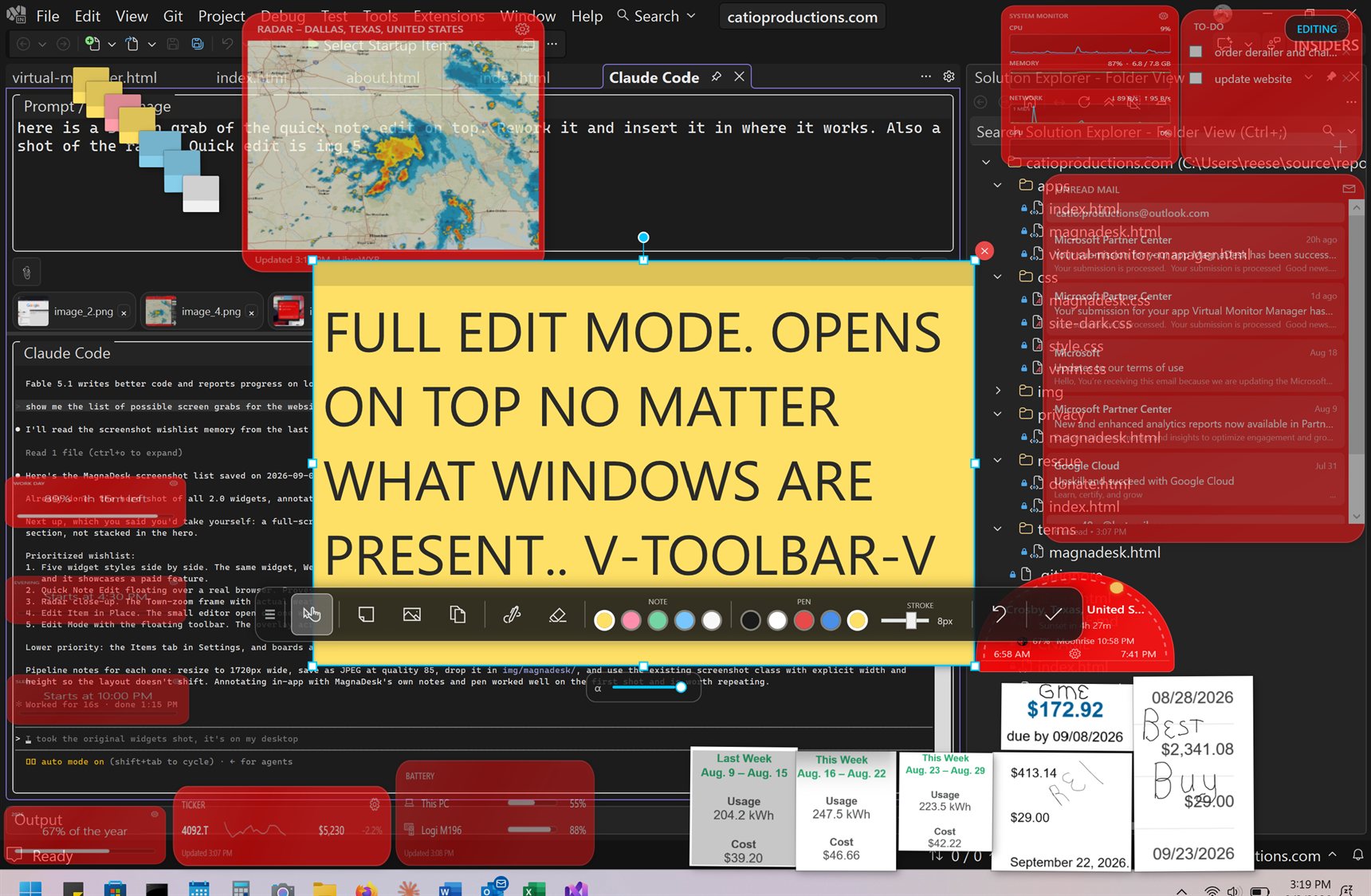
A real desktop, not a mockup — every 2.0 widget running in one of the 11 color themes, annotated with MagnaDesk's own sticky notes and pen.
New in 2.0 — and now the default
Desktop Layer Mode
MagnaDesk draws everything on an invisible layer just beneath your desktop icons. The layer is completely click-through — icons, double-clicks, and right-click menus work as if it weren't there. MagnaDesk is designed to complement Windows, not replace it.
Truly live
Widgets on the layer really run: clock hands sweep, timers count down second by second, the radar animates. The desktop stops being a static picture you look past and becomes a surface that works for you.
Not another wallpaper app
MagnaDesk doesn't set, manage, or replace your background — it has no interest in it. Your picture, your Windows slideshow, Windows Spotlight, your themes all keep working untouched. And because the canvas isn't part of the background, Windows changing the background can never erase it.
Self-healing
The layer re-attaches itself after Explorer restarts, monitor changes, sleep, and graphics-driver resets. If MagnaDesk starts at sign-in before the desktop exists, it waits and switches over as soon as the desktop appears.
Plays nice with others
Running Wallpaper Engine or Lively? They normally coexist fine with MagnaDesk. If the canvas ever doesn't appear, MagnaDesk names the app it detected at startup so you know why — it never fights other apps for position.
On systems where the layer can't attach, MagnaDesk falls back to Classic Wallpaper Mode by itself and tells you once — details under Requirements.
New in 2.0
Live Widgets
A whole family of widgets built for the live layer — animated, glanceable, and running right on your desktop. The Clock is free for everyone; the rest come with the full version (and are all yours during the 30-day trial).
Clock Free
An analog face with a smoothly sweeping second hand (or classic one-second steps), an optional digital readout, and 12/24-hour formats. The showcase for what the live layer can do.
World Clock
Several time zones side by side in one card — one row per zone, each with its own label. Add, remove, and reorder zones from the widget's own settings. One clean surface for as many zones as you follow.
Countdown
Counts second by second toward a date — "3d 07:05:09" — turns red at zero, and chimes when it lands.
Pomodoro
Configurable work and break cycles with a long break every few sessions. Start, pause, and skip from the tray menu, get a notification and a chime at each phase change — and it keeps counting even while MagnaDesk is closed.
Progress & Habit
"% of today" and "% of the year" bars, a habit-streak counter with one-tap check-in and a grace rule, or a work-day range — "38% · 4h 55m left" — overnight shifts included.
Sun / Moon
A dome-shaped card tracing today's sunrise-to-sunset arc, with the sun crawling along it — "Sunset in 3h 12m" — and the moon riding the same arc between moonrise and moonset, drawn as its actual current phase. All computed locally: no API, no key. Polar day and night are handled honestly ("Midnight sun — no sunset today").
Next Meeting
A bar that drains toward your next event: full at an hour out, empty at start, refilling green while the meeting runs, red in the final five minutes. The one live widget that uses a connected account.
Now Playing
Whatever's playing — Spotify, Media Player, most browsers — with title, artist, album art, and a progress bar that sweeps smoothly between updates. Display-only by design: the layer is click-through, so you control playback in the player itself.
System Monitor
Two-minute scrolling graphs of CPU, memory, network (down and up, autoscaled), and GPU, sampled every second, entirely local. Each pane can be toggled, and the GPU pane hides itself where Windows doesn't expose the counters.
Ticker — Stocks & Crypto
Symbol, 7-day sparkline, price, and 24-hour change in green or red. Crypto works out of the box with no key; stocks use your own free Finnhub key, stored encrypted on your machine. Rows rotate when your list outgrows the widget.
Battery
Your PC's battery plus every Bluetooth device that reports its level to Windows — headsets, earbuds, BLE mice and keyboards — with a bar that turns red at 20% and a bolt while charging. All read locally. Devices on proprietary wireless dongles don't report a level, so they can't be shown.
Don't see the widget you need?
I'm actively looking for more useful widget ideas. Send me an email describing what you need — if it can be built, It will be in the next update.
Your Calendar, Mail, and Weather — On the Desktop
Alongside the live widgets, MagnaDesk shows the data you actually run your day on. Weather, radar, and the local checklist need no account at all; the rest connect to your Microsoft or Google account, read-only.
Calendar
Upcoming events grouped by day with subject, time, and location. Works with Outlook and Google Calendar.
Unread messages with sender, subject, and preview, and a red indicator for high-importance mail. Shows "Inbox zero" when you're caught up.
To-Do List
Aggregates tasks across all your lists, grouped by due date — Overdue, Today, Tomorrow, Upcoming, No Date.
Task List
One specific Microsoft To Do or Google Tasks list, due dates, and completion status at a glance.
OneNote
Your most recently modified pages with notebook, section, and relative timestamps — a quick visual of what you've been working on.
Weather Free
A worldwide forecast — no account, no API key. Search any city, pick °C or °F per widget, and get current conditions plus the days ahead.
Radar
Live weather radar for locations worldwide, no account needed. Four zoom levels from Wide to Town pull tighter areas at full source resolution, with pan controls to center on your street. In Desktop Layer Mode it can loop the last two hours of frames like a broadcast radar animation.
Local To-Do Free
A plain checklist that lives on your desktop and nowhere else. No account, no sign-in, no sync — just a list you tick off, stored on your own computer.
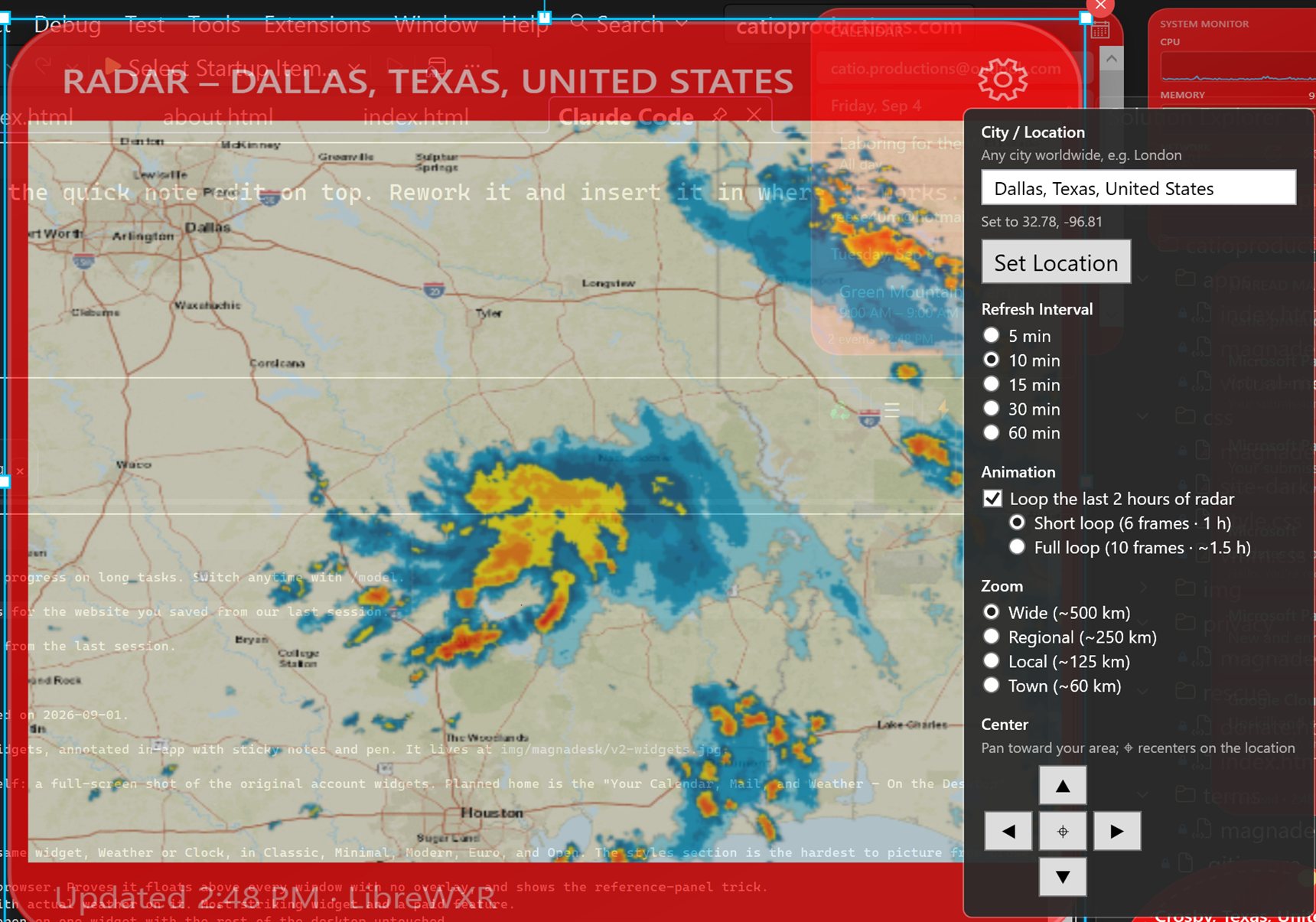
Weather and radar data powered by LibreWXR (CC BY 4.0). Worldwide forecasts and city search from Open-Meteo; radar basemap tiles from Esri World Street Map. Italian radar tiles are Radar-DPC (Italian Dipartimento della Protezione Civile).
New in 2.0
Five Widget Styles, One Click
One look for every widget on the desktop, picked from live previews in Settings — and the previews are the real widget rendering, so what you pick is exactly what you get.
Fair warning: the styles are still very much in development. A few of them currently look closer to each other than they should, and they'll keep changing between updates as I sort that out.
Classic Free
The familiar card with a title bar. The look MagnaDesk has always had.
Minimal Free
Half the size, all the information — no title bars, tight designed layouts. The lightest on your battery.
Modern
Frosted glass, soft corners, content first.
Euro
Flat slabs, square corners, bold condensed type, and a color accent.
Open
No cards at all — widgets float straight on the desktop, and each one watches the colors behind it: over a light area it slips a dark backing behind itself so its text stays readable. Re-evaluated every time what's behind it changes, slideshow ticks included.
11 color themes — Dark, Slate, Navy, Cobalt, Teal, Forest, Olive, Rust, Wine, Plum, Charcoal — applied per widget or to everything at once. Want something else entirely? The rainbow swatch opens a full color picker, and its 16 custom slots stick around across sessions. Modern, Euro, Open, and the color themes are full-version features; Classic and Minimal are free.
Three Shortcuts That Skip Edit Mode
Most days you don't need the full editing overlay — you need one thing done right now. These three global shortcuts work from any app, anywhere in Windows.
Quick Paste — Ctrl+Alt+Q
The fastest way to get anything off your screen and onto your desktop. Press it from any app and MagnaDesk reads your clipboard: an image lands straight on the canvas, text becomes a new sticky note that's still fully editable. Pair it with Win+Shift+S for the fastest snip-to-desktop loop on Windows — snip anything, hit Ctrl+Alt+Q, done. It even works while the canvas is hidden; items keep accumulating for whenever you toggle it back on.
Quick Note Edit — double-tap Ctrl+Alt+Q
Same shortcut, two gestures: one tap pastes, two taps edits. A small floating editor pops up above every window — no overlay across your monitors. Type into the note, cycle through every note on your canvas with Ctrl+→ / Ctrl+←, resize the font, recolor, add a fresh note, or delete one. It doubles as a reference panel, too: paste a long list into a note, switch to your browser, and copy the lines out one at a time — the note floats above the browser the whole time. Only the notes you actually change get saved.
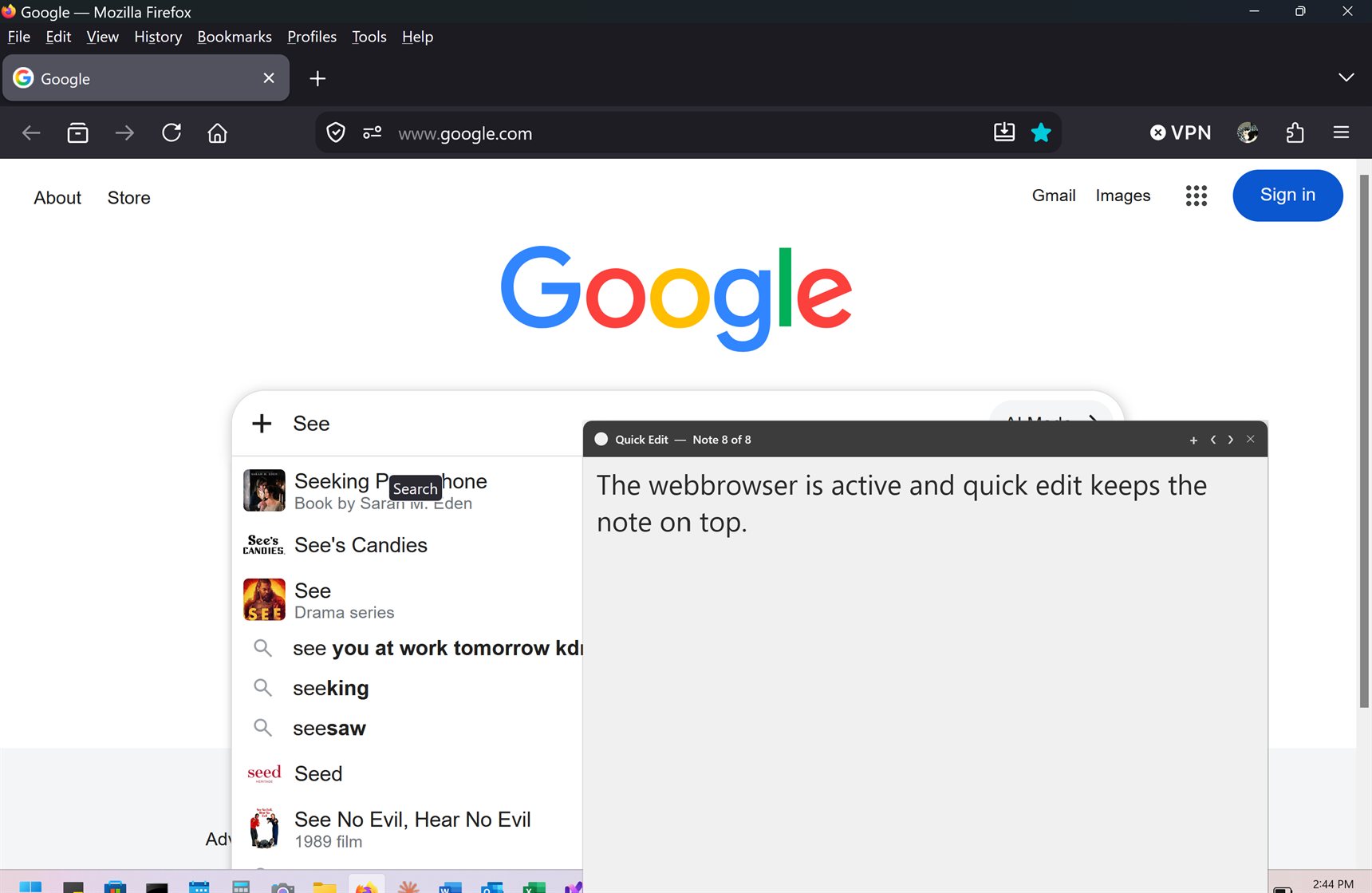
Edit Item in Place — Ctrl+Alt+E New in 2.0
Sometimes you just want to fix one thing — nudge a widget, reword a note — without opening full Edit Mode across every monitor. Press Ctrl+Alt+E and each item on the canvas becomes clickable; click the one you want and a small always-on-top editor opens for that item alone. And it hosts the real control: check off to-dos, run the Pomodoro, open a widget's settings, edit note text, draw on anything. Move and resize the editor freely — it's a view; the item's place on the desktop never changes. Press the shortcut again, or Esc, and everything saves in one go.
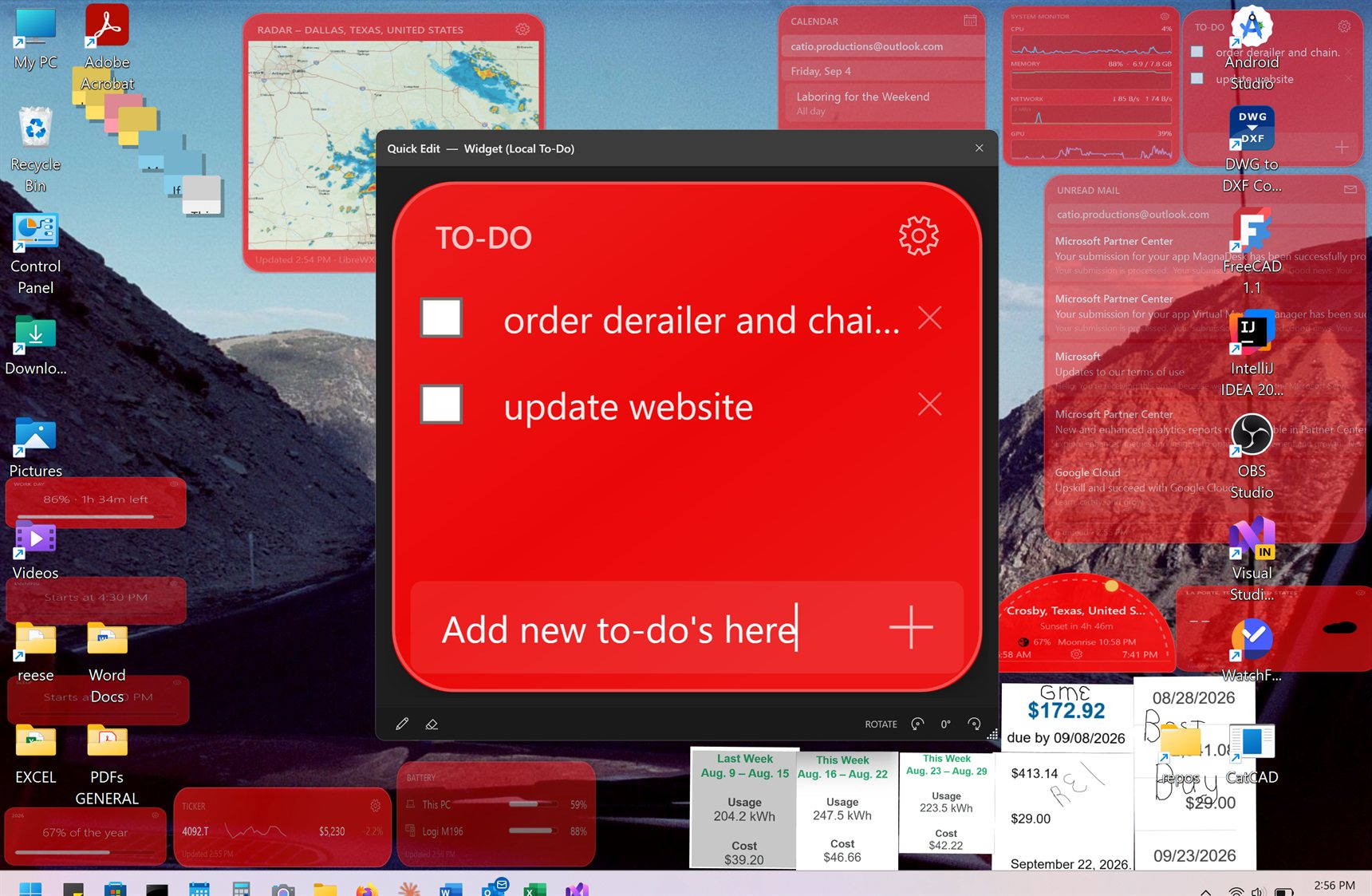
All three are free for your first 30 days and part of the full-version unlock after that. How that works.
What You Can Put on Your Desktop
Sticky Notes
Editable text notes in five colors — yellow, pink, mint, blue, and white — recolorable anytime. Long notes remember where you scrolled: scroll to the lines that matter, press Done, and that's what stays on your desktop, even across restarts.
Images
Place any JPG or PNG with crop support. Or Win+Shift+S to snip anything on screen, then Ctrl+V to paste it — web pages, spreadsheets, emails, anything visible.
Screen Snippets
Anything you can copy to the clipboard, you can paste onto the canvas. Recognizable text lands as an editable sticky note; screen grabs land as an image.
Drawing & Shapes
Draw directly on the canvas — or on any item or widget. The ink becomes part of that item: it moves, resizes, and rotates with it, and persists across restarts. Five pen colors, 1–12px stroke width, and a canvas zoom slider so you can write large and shrink the result. Works with a Surface Pen for real handwriting, and the eraser removes individual strokes.
Seven Shape Tools
- Freehand plus six shapes — Line, Arrow (with barbed tip), Circle, Rectangle, Triangle, and a 5-point Star, each drawn with a single drag.
- Shift+drag snaps a line — hold Shift while drawing freehand and the stroke becomes a clean straight line.
- Rotate while you place — sizing a Rectangle or Triangle, hold Shift or Space to lock the size and rotate around the pick point.
- Right-click for the tool menu — switch between Freehand and any shape, clear all strokes, or finish up.
- Clean undo — Ctrl+Z removes a whole arrow (shaft and both barbs) in one step, and even "Clear All Strokes" can be undone.
Select any item and spin the mouse wheel to scale it from the center, about 10% a notch — no handle-grabbing, and the whole gesture undoes in one step. Hold Shift while scrolling to scale the text or content too.
Edit Mode, When You Want the Whole Canvas
Press Ctrl+Shift+M and a transparent overlay spans all your monitors with a floating toolbar — drag it anywhere by its grip. Arrange everything at once, then press Esc and it's back to your normal desktop.
- Select (S) — click to select, drag to move, corner handles to resize, rotation handle to rotate, × to delete
- Add Note (N) — a new sticky note at the center of your primary monitor
- Add Image (I) — file picker to place an image on the canvas
- Paste (Ctrl+V) — pastes a clipboard image
- Pen (P) — freehand and shapes, on the canvas or on any item
- Eraser (E) — click a stroke to erase it
- Color swatches — five note colors, five pen colors, and all eleven widget themes when a widget is selected
Taskbar Button or Tray Icon — Your Call
MagnaDesk is meant to sit quietly in the system tray and stay out of your taskbar — left-click toggles Edit Mode, right-click opens the full menu. The catch: Windows 11 hides new tray icons by default, and plenty of first-time users simply couldn't find the app. So you get a choice: a normal taskbar button (new installs start here; closing it minimizes, MagnaDesk keeps running) or the quiet tray icon. Switch anytime in Settings → General — one or the other, never both — and Settings walks you through un-hiding the tray icon if Windows tucked it away.
Boards — More Than One Desktop
A board is a whole independent canvas: its own notes, images, drawings, widgets, and pen color. Keep one for work, one for home, one for the project that's eating your life — and switch between them from the tray in a click.
- Switch instantly — pick a board from the tray's Boards submenu; the one you're leaving is saved first.
- Create, rename, delete — all from the same menu. Deleting asks first, and you can't delete your only board.
- Nothing to migrate — the desktop you already have becomes a board called My Desktop automatically.
- Backed up like everything else — each board gets its own folder with the same automatic backups as the main canvas.
Creating extra boards is a full-version feature. Switching between, renaming, and deleting the boards you already have always works — no board is ever hidden or taken away from you.
Find Anything on Your Canvas
Once you've got a busy desktop, things get lost — buried under other items, stranded off-screen after a monitor change, or faded to 15% opacity by someone who then couldn't find them again. (That someone was me.) The Items tab in Settings lists everything on your canvas and lets you fix it from there.
- Everything, grouped by type — Notes, Images, Drawings, and Widgets, listed even when the canvas is hidden.
- Click a row to find it — MagnaDesk brings the item to the front and highlights it on the canvas.
- An Edit button on every row — opens that item alone in its floating editor, the same one Ctrl+Alt+E opens, without touching the rest of the desktop.
- Search and sort — filter by name or type; sort by z-order, name, or opacity.
- Names that make sense — sticky notes name themselves from their first few words, or type your own.
- Opacity slider per item — fade or restore anything live, with a one-click reset back to 100%.
- Bring to front, send to back, delete — sort out z-order and clear clutter without hunting on screen.
Built to Stay Out of the Way
A live desktop is only worth having if it never costs you a frame or a percent of battery when you need them elsewhere. MagnaDesk is aggressively polite about resources.
Fullscreen? MagnaDesk steps aside
While a fullscreen app is up — a game, a movie — widget refresh pauses automatically, so MagnaDesk never competes with it for resources. Everything catches up the moment the desktop is visible again. Animations also pause during presentations, the screensaver, and while your PC is locked.
Battery-aware
On battery, animations slow to quarter speed by default — or keep animating, or pause entirely; your call in Settings.
Idle widgets cost nothing
A widget whose display hasn't changed doesn't render at all. And under sustained load, all animations stretch together and recover automatically rather than a few widgets starving.
No blank gaps
The System Monitor keeps sampling even while paused, so when you come back from a game there's no hole in the graphs where the game was.
Need a clean desktop? Hide it all in one click
Hide Canvas in the tray menu clears every note, image, and widget off your screen — for a screen share, a screenshot, or just a breather. Hidden doesn't mean off: Ctrl+Alt+Q Quick Paste keeps landing new snips and notes on the hidden canvas, the Pomodoro keeps counting, and the Items list in Settings still shows everything. MagnaDesk even uses the downtime politely — widget refresh pauses so the hidden canvas costs you zero CPU and network, then everything fast-forwards against the clock the moment you toggle it back. Nothing looks stale, and nothing is ever lost.
Multi-Monitor, Properly
One canvas spans all connected monitors — place anything on any screen.
- Unplug a monitor and its items migrate to the nearest active screen; plug it back in and they return to their original positions
- Mixed display scaling is handled properly, so items land exactly where you put them on every screen
- "Recover Off-Screen Items" in the tray menu rounds up anything that gets lost
Keyboard Shortcuts
The global shortcuts work from anywhere in Windows and are all remappable in Settings → General → Hotkeys — click one, press your combination, and if it clashes with another MagnaDesk shortcut or something another app already claimed, it tells you right there instead of quietly failing.
| Global — works anywhere | Action |
|---|---|
| Ctrl + Shift + M | Toggle Edit Mode |
| Ctrl + Alt + Q | Quick Paste — clipboard image or text onto the canvas, even while hidden |
| Ctrl + Alt + Q, Q | Quick Note Edit — double-tap within 400 ms to open the floating note editor |
| Ctrl + Alt + E | Edit Item in Place — press again to finish |
| Ctrl + Alt + W | Next Wallpaper (Classic Wallpaper Mode only) |
| In Edit Mode | Action |
|---|---|
| S / N / I | Select tool / Add Note / Add Image |
| P / E | Pen tool / Eraser tool |
| Ctrl + V | Paste clipboard image |
| Ctrl + Z | Undo |
| Delete / Backspace | Delete selected item |
| Scroll wheel | Resize selected item — hold Shift to scale the text too |
| Esc | Exit Edit Mode |
Your Accounts, Read-Only. Your Data, Local.
Microsoft
Sign in with the device code flow — you get a code to enter at microsoft.com/devicelogin. Grants read access to To Do, Calendar, OneNote, and Mail, with both personal and work/school accounts. MagnaDesk never writes to, modifies, or deletes anything in your accounts.
Sign in through your browser for read-only access to Google Calendar and Google Tasks — those widgets then show your Google data alongside (or instead of) Microsoft data.
- No telemetry, no analytics, no crash reports — nothing about your usage is transmitted to me, ever
- Tokens stay on your machine — encrypted with Windows DPAPI, scoped to your Windows user
- Everything lives in %AppData%\MagnaDesk — your notes, boards, and settings are files on your own computer
- Connect one account free; several at once is part of the full version
The full details are in the privacy policy.
Free to Try, Then a One-Time Unlock
MagnaDesk is a free download with everything unlocked for 30 days — no credit card, no sign-up, nothing to cancel. After that it settles into a limited version unless you buy the full unlock: $14.99, once, through the Microsoft Store. No subscription, no second purchase later, and the license follows your Microsoft account to any PC.
The app never stops working. It doesn't lock you out, hold your desktop hostage, or nag you every time you open it — it just quietly does less.
Free, Forever
- The whole canvas — sticky notes, images, screen snippets, drawings, shapes
- Desktop Layer Mode on all your monitors
- Clock, Weather, and Local To-Do widgets
- Account widgets — Calendar, Mail, Tasks, To-Do, OneNote — on one connected account
- Classic and Minimal widget styles
- The boards you already have: switch, rename, delete
The Full Version — $14.99
- Quick Paste, Quick Note Edit, and Edit Item in Place
- All ten live widgets beyond the Clock — World Clock, Countdown, Pomodoro, Progress & Habit, Sun / Moon, Next Meeting, Now Playing, System Monitor, Ticker, Battery
- The Radar widget
- Modern, Euro, and Open widget styles
- All 11 color themes, plus the pick-any-color swatch
- Separate slideshow folders for each monitor
- More than one connected account
- Creating new boards
Everything above is yours during the 30 days, so you can find out whether you actually want it before paying for it. Pay the $14.99 and it all comes back exactly as you left it — nothing is deleted or reset in the meantime.
Requirements, and the Honest Fine Print
- Windows 10 (version 1809) or Windows 11
- Single or multi-monitor setup — mixed scaling is fine
Where Desktop Layer Mode works
I've verified the layer on Windows 11 22H2 and on 24H2 or newer. On other versions from Windows 10 (1809) up, MagnaDesk will try; if it can't attach the layer, it falls back to Classic Wallpaper Mode by itself and tells you once. In classic mode your items are painted into the wallpaper image instead — everything still works, but widgets appear static between refreshes and can't animate. Classic mode also brings MagnaDesk's built-in wallpaper tools: single images, slideshows, solid colors, and independent control of every monitor.
If Windows ever changes underneath it
A future Windows update could change how the desktop is built and temporarily break the layer. If that ever happens, nothing is lost: MagnaDesk detects it, switches to Classic Wallpaper Mode on its own, and lets you know once — your notes and widgets carry straight over. When that day comes, I'll be working my hardest to get the layer back quickly in an app update.
Support
Email: [email protected]
I read every message and respond personally within 1–2 business days.